
In this guide
- What actually talks to your router — and what never does
- Router change vs provider change: what each one affects
- The four router settings that cause most of the trouble
- A switch-over plan: before, on the day and after
- Special cases: provider-supplied routers, mesh Wi-Fi and backup internet
- The 15-minute test after any network change
- How Pert delivers it (designed, not DIY)
- FAQs
This article is part of our wider coverage of home automation in Hyderabad. It builds on how to plan Wi-Fi and the network for a smart home, which covers designing the network in the first place, and what a smart home gateway does, which explains the box that sits between your devices and your router. Here we deal with the moment that network changes.
What actually talks to your router — and what never does
A Zigbee smart home is really three networks stacked on top of each other, and a router change affects only the top two.
Layer 1: the Zigbee mesh (never touches the router)
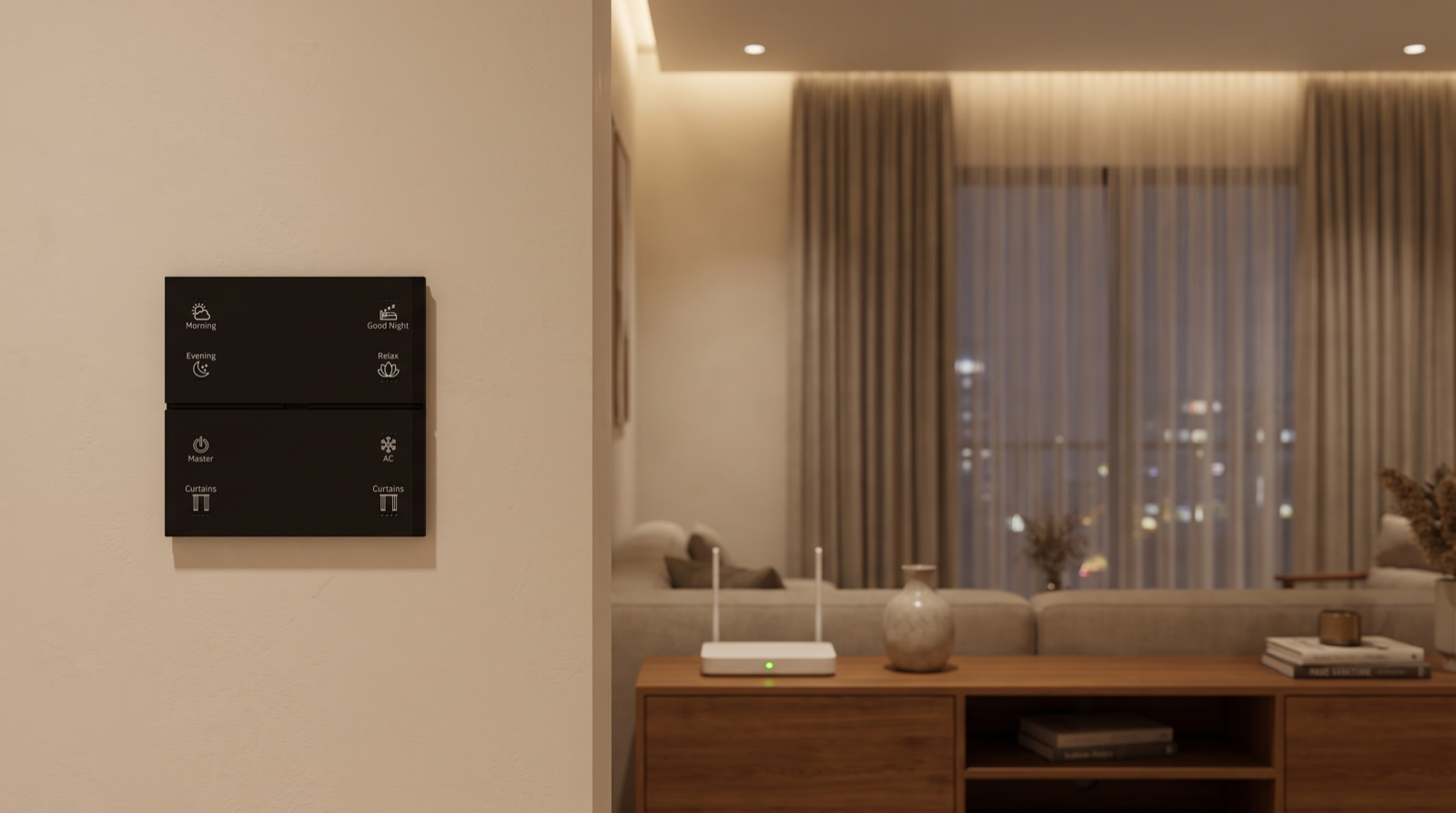
Your keypads, light controllers, curtain motors and sensors are paired to the gateway's own Zigbee network. They do not know your Wi-Fi name or password and never connect to the router. Scenes, schedules and sensor automations run between these devices and the gateway, inside the home. That is why pressing Good Night on a keypad still works with the router unplugged. Our explainer on how a Zigbee mesh network works covers this layer in detail.
Layer 2: the home network (the router's job)
The Pert gateway joins your home network so that phones, remote access and voice assistants can reach it. So do devices that connect over Wi-Fi directly, such as cameras and a video doorbell, plus the phones and voice speakers themselves. Every one of these remembers a network name, a password and a security type — not the router as a physical box. Change any of those three and they all lose their connection at once.
Layer 3: the internet (the provider's job)
Remote control from outside the home, voice commands, push notifications, camera viewing on mobile data and clock synchronisation all travel over the internet. A provider change affects this layer: there will be a gap between the old line going down and the new one coming up, and occasionally the new provider's equipment behaves differently.
Put simply: a router change affects layers 2 and 3; a provider change affects layer 3, and layer 2 too if the provider gives you a new router. Layer 1 — the part you touch every day — is untouched by both.
Router change vs provider change: what each one affects
| Part of the system | Connects to | New router, same Wi-Fi name and password | New router, new Wi-Fi name or password | New provider, same router |
|---|---|---|---|---|
| Keypads, lights, curtains, sensors | Gateway (Zigbee) | No effect | No effect | No effect |
| Scenes, schedules, sensor automations | Run on the gateway | No effect | No effect | No effect (clock may need to resync once online) |
| Pert gateway's network link | Home router | Usually reconnects by itself | Must be pointed at the new network | Reconnects once the new line is live |
| App control at home | Router, then gateway | Works once the gateway reconnects | Works after the gateway is reconfigured | Usually unaffected |
| App control away from home | Internet, then gateway | Works once the gateway reconnects | Works after the gateway is reconfigured | Down until the new line is live |
| Cameras and video doorbell | Router (Wi-Fi) | Usually reconnect by themselves | Each must be set up on the new network | Down until the new line is live |
| Voice assistants (Alexa, Google) | Router, then the voice service | Usually reconnect | Each speaker must be set up on the new network | Down until the new line is live |
| Push notifications and alerts | Internet | Resume when the gateway reconnects | Resume after reconfiguration | Paused during the gap |
The column that matters most is the middle one. Almost every painful router change we are called to fix is a case where the new router came with a new network name or password — often the default printed on the sticker — and nobody realised that a dozen devices needed to be told.
The four router settings that cause most of the trouble
1. Network name, password and security type
Copy all three exactly. Wi-Fi names and passwords are case-sensitive, so Sharma_Home and sharma_home are different networks to a device. The security type matters too: if the old router used WPA2 and the new one defaults to WPA3-only, some older Wi-Fi devices will refuse to join. A "WPA2/WPA3 mixed" or "transition" mode is the safer choice for a home with a mix of old and new devices.
2. How the router handles 2.4 GHz
Most smart-home Wi-Fi devices use only the 2.4 GHz band. Many new routers and almost every mesh system combine 2.4 GHz and 5 GHz under one network name and steer devices between them ("band steering" or "smart connect"). Most of the time this is fine, but during first setup some devices fail to join a combined network. If a camera or speaker will not connect, temporarily splitting the bands — or using a separate 2.4 GHz network name for setup — usually solves it.
3. The address range and reserved addresses
Every router hands out local addresses from its own range: one might use 192.168.1.x, the next 192.168.0.x or 192.168.29.x. Anything that was set up to find a device at a fixed address — a reserved address for the gateway, a camera recorder pointed at specific cameras, a rule in a home-network firewall — will look in the wrong place after the change. Before the old router comes out, note down any reservations so they can be recreated. A good installer documents these at handover; if yours did, this step takes two minutes.
4. The 2.4 GHz channel and channel width
Zigbee and 2.4 GHz Wi-Fi share the same radio band. Zigbee uses narrow 2 MHz channels numbered 11 to 26; Wi-Fi uses wide channels, and in most homes only channels 1, 6 and 11 avoid overlapping each other. Zigbee channels 15, 20 and 25 sit in the gaps between those three Wi-Fi channels, which is why installers often choose one of them. A new router set to "auto" can land its Wi-Fi right on top of the Zigbee channel, and one set to 40 MHz width on 2.4 GHz covers roughly twice the spectrum. The symptoms are subtle — commands that take a second longer, a curtain that misses one press in twenty — and they are often blamed on the automation. Set 2.4 GHz to 20 MHz width and a fixed channel that does not overlap the Zigbee channel. If your system has become sluggish since a network change, why home automation becomes unreliable and how to fix it walks through the full diagnosis.
A switch-over plan: before, on the day and after
| When | Step | Why |
|---|---|---|
| Before | Write down the current Wi-Fi name, password and security type (check the router settings, not memory) | Lets the new router be set up as an exact copy |
| Note any reserved addresses, port rules or a separate guest or IoT network | These do not carry over automatically | |
| Tell your installer the date | They can confirm the gateway's network details and be on call for the hour that matters | |
| Check where the new router will sit, and whether that socket is on the inverter | A router off backup power takes remote access down with every power cut | |
| On the day | Ask the technician to set the old Wi-Fi name and password on the new router before it goes live, not the sticker default | Most devices then reconnect without being touched |
| Set 2.4 GHz to 20 MHz width and a fixed channel agreed with your installer | Avoids Zigbee interference | |
| Keep the new router at least a metre or two from the gateway | Two strong 2.4 GHz radios side by side compete | |
| Restart the gateway once the new network is up, then wait ten minutes for Wi-Fi devices | Gives everything a clean reconnection | |
| After | Run the 15-minute test below | Confirms every layer, not just the app |
| Recreate any address reservations and update the network notes in your handover documents | The next change becomes even easier | |
| If you must change the password, do it as a separate, planned step | Changing router and password on the same day doubles the work and makes faults harder to trace |
If the new router genuinely has to use a new name or password, the plan still works — it just adds a step: the gateway and each Wi-Fi device are moved to the new network one by one, starting with the gateway so that scenes and remote access come back first, then cameras and the doorbell, then voice speakers. For voice in particular, the speakers and the skill linking are covered in home automation with Alexa and Google Home.
Special cases: provider-supplied routers, mesh Wi-Fi and backup internet
When the fibre provider's box is also the router
Many fibre connections in Hyderabad arrive with a single box that is both the fibre terminal (ONT) and the Wi-Fi router. When you switch providers, that box is replaced and its Wi-Fi settings go with it. Ask the technician to set your existing network name and password before leaving; most will if asked, and few think of it otherwise. If you prefer to keep your own router, the provider's box can often be put into a bridge mode so that your router keeps doing the Wi-Fi — then the smart home sees no change at all apart from the internet gap. Bridge mode varies by provider, so check before relying on it.
Adding a mesh Wi-Fi system
Mesh Wi-Fi is often the right fix for weak signal in a villa or a long flat with concrete walls. Treat it as a router change: the main mesh unit usually becomes the new router and starts with its own settings. Copy the old network name and password, place satellite units away from the gateway, and remember that Wi-Fi mesh and Zigbee mesh are separate. A new Wi-Fi satellite in a bedroom improves the phone signal there but does nothing for the Zigbee network, which has its own repeaters.
Adding a backup internet connection
A router with a 4G or 5G SIM that takes over when the fibre fails is useful in homes where remote access really matters, such as homes left empty for long periods or where elderly parents live alone. The smart home does not need to know about the switch-over, provided the backup is built into the same router so the local network stays the same. Two separate routers with two Wi-Fi names, by contrast, means devices sit on whichever network they joined first and will not move across during an outage.
Changing the password for security reasons
If a former tenant, contractor or staff member knew the Wi-Fi password, changing it is sensible. Plan it like a router change, because every Wi-Fi device has to be updated. A separate guest network for visitors avoids having to do this again. Our guide to smart home cybersecurity explains why a dedicated network for smart devices is worth considering.
The 15-minute test after any network change
The app opening on your phone at home proves very little; your phone may be reaching the gateway locally. Test every path:
- Press a keypad scene in two rooms. This confirms the Zigbee layer and the gateway are healthy (they should be — this is the control).
- Check the app at home on Wi-Fi: every room loads and every device shows its real state, with nothing marked offline.
- Turn Wi-Fi off on your phone and use mobile data. Run a scene and open a curtain. This proves remote access through the internet, which is the path you will rely on when you are away.
- Give one voice command to each speaker, such as "Alexa, turn on Relax".
- Open each camera and the video doorbell on mobile data, and play one recent recording.
- Trigger one alert — for example, open a door with a contact sensor while the home is in away mode — and confirm it reaches every phone that should receive it.
- Check the clock: the gateway's time should match your phone, so that tonight's sunset scene runs at the right moment.
- Watch for slow responses over the next two or three days. A delay that was not there before points to Wi-Fi channel overlap with Zigbee (setting 4 above).
If any step fails, you know which layer to look at: steps 1–2 point to the gateway or the local network, steps 3–6 to the internet path or a specific Wi-Fi device, and step 8 to radio interference. Our guide to smart homes during power cuts and internet outages explains what each layer does when its connection is missing.
How Pert delivers it — a designed solution, not a DIY kit
A smart home assembled from separate Wi-Fi gadgets puts every single device on the router, so every router change becomes a re-setup of the whole home. Pert designs it the other way round. Your keypads, smart lighting, motorised curtains and sensors run on a Zigbee network around the Pert gateway, so the router carries only a handful of connections: the gateway, security devices such as cameras and the video doorbell, and voice speakers. At design stage we agree where the router and gateway will sit and which sockets are on backup power; at commissioning we set the Zigbee network up to sit clear of your Wi-Fi and note the network details your system depends on; and when you change router or provider later, our Hyderabad support team can talk your technician through the settings or visit to reconnect and test everything. Pert's experience centre is in Begumpet, where you can see the system working and ask our team how it would handle your home network.
If you are still choosing who should design and install your system, best home automation companies in Hyderabad lists what to ask — including "what happens when I change my router?"
Changing your router or internet provider soon? Tell us the date and we will help you plan the switch so that scenes, remote access, voice and cameras keep working. Planning a new home? We will design the network side from day one. Talk to our team →
Frequently asked questions
Will I have to re-pair all my smart switches and keypads if I change my Wi-Fi router?
Not in a Zigbee system. Keypads, light controllers, curtain motors and sensors are paired to the gateway's own Zigbee network, not to your Wi-Fi router, so a new router does not touch them. Only the gateway's connection to your home network, and any device that joins Wi-Fi directly such as cameras or a video doorbell, needs attention. If the new router uses exactly the same network name and password as the old one, most of those devices reconnect on their own.
Does my smart home stop working while the router is being changed?
The parts that run inside the home keep working. Keypad scenes, schedules and sensor automations run between the gateway and the Zigbee devices, so lights and curtains respond normally even with no router at all. What pauses is everything that needs the internet: app control from outside the home, voice assistants, push notifications and camera viewing. These come back once the gateway and Wi-Fi devices are connected to the new network.
Should I keep the same Wi-Fi name and password when I change routers?
Yes, in most homes that is the single most useful thing you can do. Devices remember the network name and password, not the router itself, so copying both exactly, including capital letters and the security type, lets most Wi-Fi devices and the gateway reconnect without being set up again. Change the password separately and deliberately later, with your installer, if you need to.
Can a new router or mesh Wi-Fi system interfere with Zigbee?
It can if it is set up carelessly. Zigbee and 2.4 GHz Wi-Fi share the same radio band, so a router placed right next to the gateway, or set to a wide 40 MHz channel on 2.4 GHz that overlaps the Zigbee channel, can cause delayed or missed commands. Keep the gateway a little away from the router, use 20 MHz width on 2.4 GHz, and set a fixed Wi-Fi channel that does not overlap the Zigbee channel your installer chose.